Use the NIIMBOT B1 via Bluetooth on your Windows PC – no USB cable
Officially the NIIMBOT PC software can only talk to the B1 via USB. With the free Windows tool niimbot-bt it prints via Bluetooth – set up in five minutes, no driver, removable at any time.
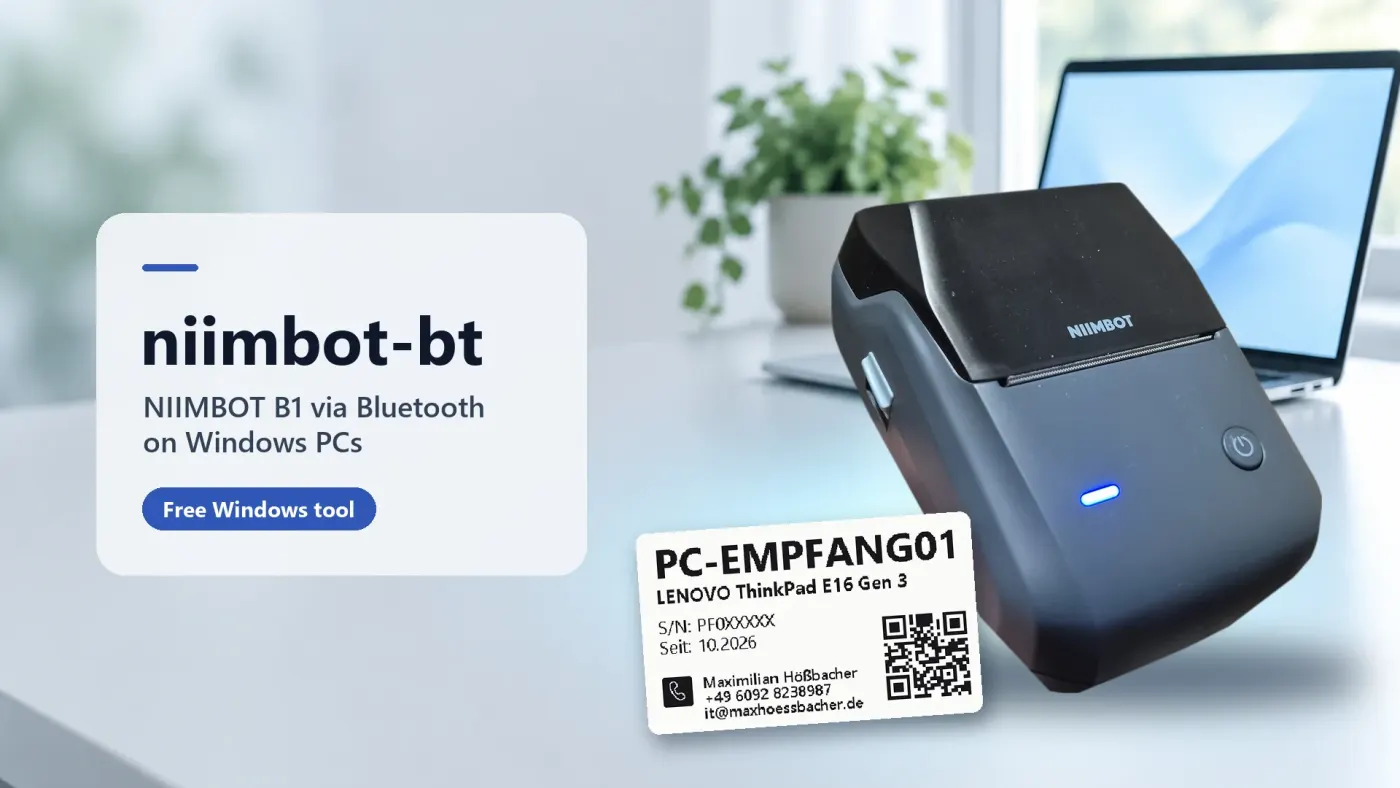
The problem: Bluetooth only works on the phone
The NIIMBOT B1 is a handy battery-powered label printer. On a phone it prints via Bluetooth, but on a Windows PC the NIIMBOT software insists on a USB cable – there is no Bluetooth driver for Windows. So at your desk you have to plug the printer in every time.
Windows can pair the B1 via Bluetooth just fine. All that is missing is the bridge to the NIIMBOT software – and that is exactly what niimbot-bt is.
What you need
- Windows 10 or 11 with Bluetooth
- the NIIMBOT PC software (free at niimbot.com)
- a NIIMBOT B1 (or another model with classic Bluetooth, see FAQ)
- administrator rights once for the setup
Set up in 5 steps
No prior knowledge needed – the program checks everything and explains if something is missing.
Pair the printer via Bluetooth
Turn the printer on. In Windows open Settings → Bluetooth & devices → Add device → Bluetooth and select the printer (named e.g. “B1-H63…”). Windows automatically creates a so-called COM port.
Download niimbot-bt
Save niimbot-bt.exe (74 KB) using the download button below. There is no classic installer – it is a single file.
Double-click and confirm the Windows notice
Double-click the file. If “Windows protected your PC” appears, click More info → Run anyway. Windows shows this for programs without a purchased publisher certificate.
Read the check and press [1] Install
A window checks whether the NIIMBOT software and the printer are ready and explains in plain words if something is missing. Press 1 and confirm the administrator prompt with Yes. Done – you can close the window.
Start the NIIMBOT software and print
Open the NIIMBOT PC software. After a few seconds “B1” with a green check mark appears at the top right. Now click “Print labels” as usual – no USB cable needed.
How niimbot-bt works
The NIIMBOT PC software talks to printers through its own print service. That service recognises printers by a USB ID on the port. A B1 paired via Bluetooth also gets a port from Windows – just without that ID.
- NIIMBOT software starts – niimbot-bt adds the ID to the Bluetooth port and the software finds the printer.
- NIIMBOT software closes – the ID is removed and the Bluetooth connection released (e.g. for your phone).
- Nothing is modified – neither the NIIMBOT software nor the printer firmware. No internet connection, no data collection.
niimbot-bt was created for an IT service project: hardware labels for managed PCs (device name, serial number, contact and QR code) are printed via Bluetooth with one click from the remote management system. More in the niimbot-bt reference (German).
Download: niimbot-bt for Windows
A single file, no installation needed – just double-click.
- Version
- 1.0.0 (Oct 29, 2026)
- Size
- 74 KB
- System
- Windows 10 / 11, .NET Framework 4.8 (preinstalled)
- License
- free, MIT
- SHA-256
beb156093cfafd3a47b1b2738d30a15e4b1b7bc07afc4aa7029c6800a83be181
NIIMBOT is a trademark of its respective owner. niimbot-bt is an independent project and is not affiliated with NIIMBOT. Use at your own risk.